Intro to linux basics
My study resource is Introduction to Linux from Devops Daily
shell basics is possible using bash terminal on macos but for the other sections i used multipass ubuntu
Shell Basics
Bash Script are commonly used but zsh are also popular and the defualt for macOS
command [opt] [args]most linux commands have this structure, options (flags) like what used - or -- and its modify how the run, args thats like the text you need to print or the file path, etc
Navigating the File System
pwd to show your current location in the file system
pwdoutput:
/Users/masls to list the file and dircetorities
lsthere’re common options like -l that gave you a long format with details, -a show hidden files, -h appers the file sizes with SI prefixes (KB, MB, GB)
ls -lahyou can combine the options flags
cd to change directory
cd /path/to/directorythere’re useful shortcuts like cd ~ to go to home dir, cd - go to previous dir, cd .. Go up one directory, cd goes to home dir
File Management
Create a directory with mkdir
mkdir my_directoryyou can add -p flag and create a parent/child directory
Create an empty file/files with touch
touch file1.txt file2.txtCopy with cp
cp source.txt destination.txt       # Copy a file
cp -r source_dir destination_dir    # Copy a directory recursively
mv used for moving and renaming file/dir
mv old_name.txt new_name.txt       # Rename a file
mv file.txt /path/to/directory/    # Move a file
mv dir1 dir2                       # rename(move) a directory
Remove files with rm
rm file.txt        # Remove a file
rm -r directory    # Remove a directory and its contents
rm -i file.txt     # Ask for confirmation before removing
rm -rf file.txt    # Remove without asking for confirmation
if the dir is empty you can use rmdir to remove it
Viewing File Content
Show file/files contents with cat
cat file1.txt file2.txt use less for large files which allows scrolling
less large_file.txtNavigation in less:
space For Next Page,
b For Previous page,
q to quit,
/[keyword] For search,
n For next search result
i think that nano a lot easier
show first 10 lines from the file using head
head file.txt
head -n 20 file.txt    # Show first 20 lines
Show the last 10 lines with tail:
tail file.txt
tail -n 20 file.txt    # Show last 20 lines
tail -f log_file.txt    # Follow the file (show updates in real-time)
The -f option is extremely useful for monitoring log files
Finding Files and Content
find used to search for files/directories in the directories
find /path/to -name "filename"add -type d flag to search for directories insted of files
grep to search for patterns inside files
grep "search_term" file.txtadd . insted of file name to search inside all files on the current directory
Working with Text Files
Edit text files with nano
nano file.txtSave command output to a file with > (overwrites) or >> (appends)
echo "Add this line" >> notes.txtConnect commands with | to use one command’s output as another’s input:
ls -la | grep "Dec"    # List files modified in December
cat file.txt | sort    # Sort the contents of file.txt
cat file.txt | grep "pattern" | wc -l    # Count lines containing "pattern"
Command Execution Control
running multiple commands sequentially using ;
mkdir new_dir; cd new_dir; touch file.txtor run second command when the first one succeds using &&
mkdir new_dir && cd new_diror run second command when the first one fails using ||
ping -c 1 google.com || echo "Internet connection failed"run command in background using &
command &View previously used commands with history
history
history | grep "find"    # Search for previous find commands
The Filesystem Hierarchy Standard (FHS)
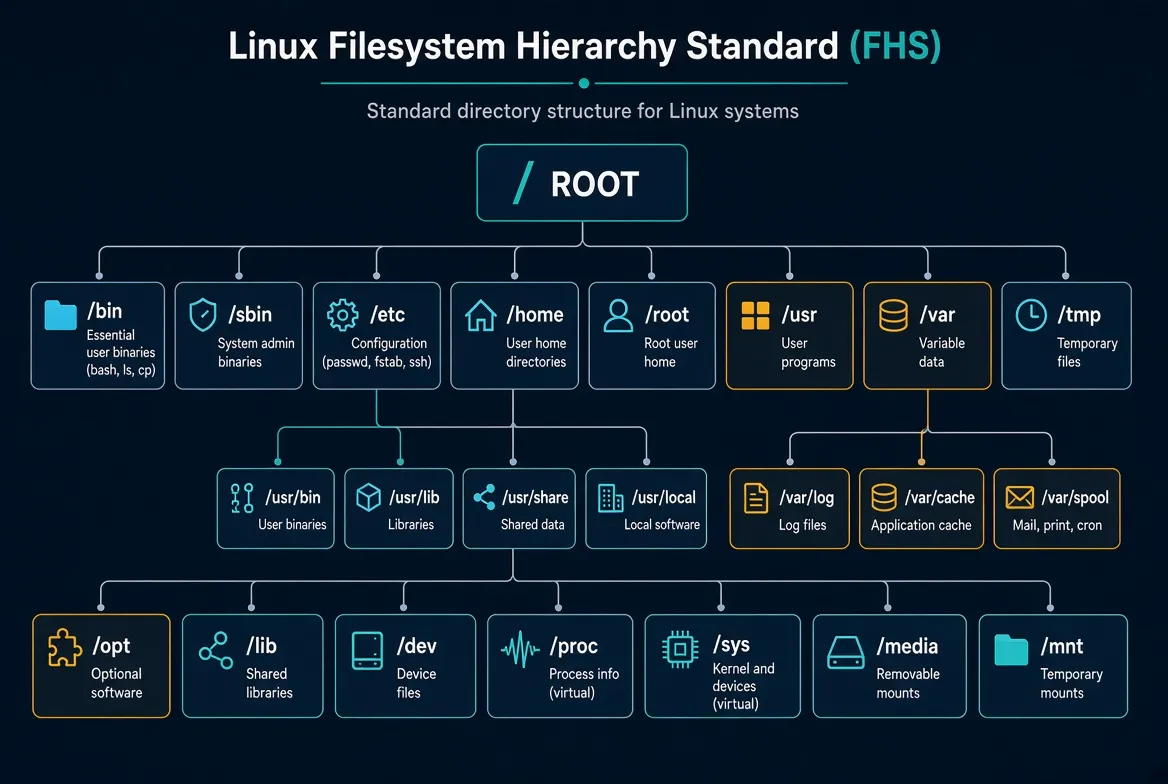
the photo visualize the root directory and the other directories with understandable explaination and style (Generated Using Grok)
Important subdirectories and files
/                          root of the whole tree
├── bin/                   essential user binaries (bash, ls, cp, mv, rm)
├── sbin/                  system admin binaries (usually root)
├── lib/                   libraries those /bin and /sbin programs need
├── etc/                   system-wide config
│   ├── passwd             user accounts
│   ├── group              groups
│   ├── fstab              mounts
│   ├── hosts              name → IP
│   ├── ssh/               SSH config
│   └── sudoers            sudo rules
├── home/                  one dir per normal user  (~ = yours)
├── root/                  root user's home (not under /home)
├── usr/                   most programs, libs, docs  ("Unix System Resources")
│   ├── bin/               user commands
│   ├── sbin/              admin commands
│   ├── lib/               libraries
│   ├── share/             arch-independent data
│   ├── local/             software you install locally
│   └── include/           C headers
├── opt/                   add-on / commercial packages
├── var/                   data that changes while the system runs
│   ├── log/               logs
│   ├── spool/             print and mail queues
│   ├── cache/             caches
│   └── lib/               variable state
├── tmp/                   world-writable temp files (often wiped on reboot)
├── dev/                   device files (sda, tty, null, zero, random)
├── proc/                  virtual: processes and kernel status (cpuinfo, meminfo)
├── sys/                   virtual: devices, drivers, kernel objects
├── media/                 removable media (USB, CD)
└── mnt/                   temporary mounts
File Permissions and Ownership
when you list files and their permissions using ls -l you see some weird things liks this:
-rwxrw-r-- 1 user group 4096 Oct 1 12:34 file.txtThe permissions are represented by the first 10 characters
Position 1: File type
Positions 2-4: Owner permissions
Positions 5-7: Group permissions
Positions 8-10: everyone else permissions
Permisions are represented numerically like the example : chmod 755 file
- Owner: 7 (rwx)
- Group: 5 (r-x)
- Others: 5 (r-x)
Permisions characters and numbers:
read -> r (4)
write -> w (2)
execute -> x (1)
read only -> (4)
Changing Permissions
Use chmod to change file permissions
chmod 755 file.txt    # Set permissions using numeric mode
chmod u+x file.txt    # Add execute permission for user
chmod g-w file.txt    # Remove write permission from group
chmod o=r file.txt    # Set others permission to read-only
chmod a+x file.txt    # Add execute permission for all (user, group, others)
Changing Ownership
Use chown to change file ownership:
chown user file.txt    # Change the owner
chown user:group file.txt    # Change both owner and group
chown :group file.txt    # Change only the group
Use chgrp to change just the group:
chgrp group file.txtFor recursive changes (affecting subdirectories and their contents) add
-Roption
Special Permissions
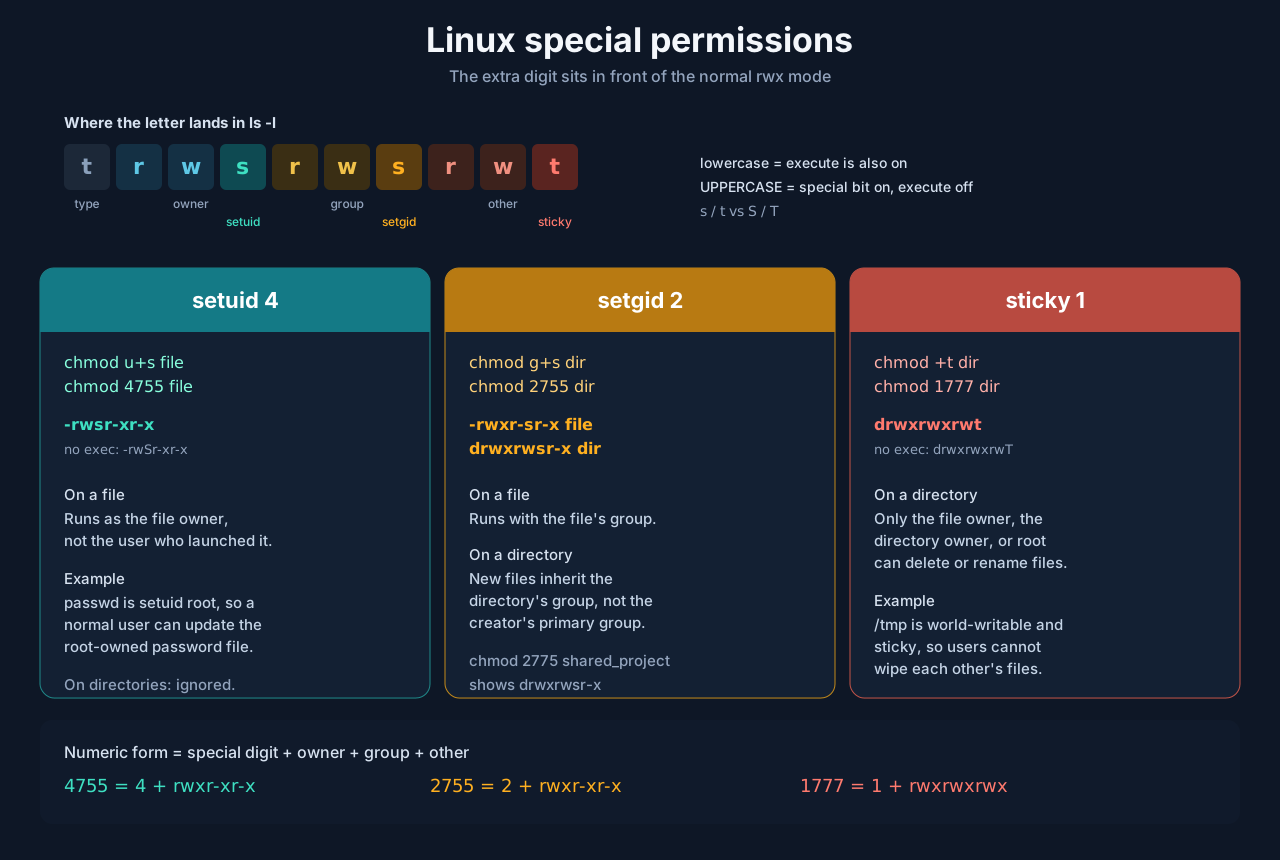
The ten characters in ls -l are type, then owner, group, other
The special bit overwrites that class’s x:
type  owner     group     other
 -    r w s     r - x     r - x     setuid   -rwsr-xr-x
 -    r w x     r - s     r - x     setgid   -rwxr-sr-x
 d    r w x     r w x     r w t     sticky   drwxrwxrwt
File Types in Linux
the types indicated by the first character in the permissions string:
-: Regular file → contains data, text or program code
d: Directory → Special files contais list of other files
c: Character device
b: Block device
p: Named pipe
s: Socket
l: Symbolic link (symlinks):
shortcuts, pointing to another file or directory
example:
        Target File                         Link Name
ln -s /etc/nginx/sites-available/mysite /etc/nginx/sites-enabled/mysite
it looks like this when you see the permision of it:
lrwxrwxrwx 1 user group 8 Jan 1 12:34 link -> targetHard links reate additional directory entries for the same file and share the same inode as the original file, You can’t create hard links to directories or across file systems.
Working with Hidden Files
any file starts with . consider hidden file
ls -a # show all file even hidden onesCommon hidden files and directories:
.bashrc: Bash shell configuration
.profile: Login shell configuration
.ssh/: SSH keys and configuration
.config/: Application configurations
.cache/: Cached data